
How to use the button onclick event in Blazor WebAssembly

Using the button click event in Blazor WebAssembly is extremely important for sending data amongst other things.
This article will explain how to implement the button onclick event in a Blazor Wasm application. We will demonstrate how to set up a Blazor onclick call method and bind it to a HTML element.
There are some easy mistakes that can be made that can result in the Blazor onclick not working. This article will point out some of the common mistakes that can happen.
In-addition, we will demonstrate how to use the parameter attribute to call a button onclick event in another Razor component.
Afterwards, we will look at how to implement other HTML events in Blazor.
Finally, we will demonstrate how to set up a Blazor async event handler, very important if the application is making API calls.
Using a Blazor WebAssembly 'notes' example
We have built a simple Blazor WebAssembly 'notes' application to demonstrate our examples.
We begin with a Note model. The Note model is responsible for storing the actual note and the date/time it was created.
// Note.cs
public class Note
{
	public string Message { get; }

	public DateTimeOffset Created { get; }

	public Note(string message)
	{
		Message = message;
		Created = DateTimeOffset.UtcNow;
	}
}
From there, we have two Razor components. The first is NoteViewComponent.razor, and it displays the actual note. A Note type is passed in as a Razor component parameter to indicate which note it is referencing.
<!-- NoteViewComponent.razor -->
@if (Note != null)
{
	<li>
		<span>@Note.Message</span>
		<span>Created: @Note.Created.ToUniversalTime().ToString("ddd d MMM yyyy HH:mm:ss")</span>
	</li>
}
@code {
	[Parameter]
	public Note Note { get; set; }
}
The other is NoteListingComponent.razor. This displays all the notes by using the NoteViewComponent Razor component, and shows a form that allows the user to create a new note.
On this Razor component, we have created a notes list property. By overriding the OnInitializedAsync method in Blazor, we go ahead and initialise our notes list property.
<!-- NoteListingComponent.razor -->
@page "/"
<div class="col-6">
	<h2>Enter your note</h2>
	<fieldset>
		<label for="Comment">
			<textarea id="Comment" cols="50" rows="6"></textarea>
		</label>
	</fieldset>
	<button type="submit">Submit</button>
</div>
<div class="col-6">
	<h2>Your saved notes</h2>
	@if (Notes?.Any() ?? false)
	{
		<ul>
			@foreach (var note in Notes)
			{
				<NoteViewComponent Note="@note"></NoteViewComponent>
			}
		</ul>
	}
	else
	{
		<p>You currently do not have any saved notes.</p>
	}
</div>
@code {

	public IList<Note> Notes { get; set; }

	protected override async Task OnInitializedAsync()
	{
		Notes = new List<Note>();

		await base.OnInitializedAsync();
	}
}
This Blazor code example can be downloaded to experiment with the things we have mentioned mention in this article.
Adding a button onclick event
We start with adding a button click event, and for this, we are going to use a textarea to bind a value to a property.
Afterwards, we will create a button. We will use button binding to a call method that adds the note to a list, and removes the textarea value.
The first thing we need to is to create a NewComment property. This will store the textarea value.
<!-- NoteListingComponent.razor -->
@page "/"
...
@code {
	...
	public string NewComment { get; set; }
	...
}
We then need to bind our NewComment property to the textarea value. We do that by using the @bind attribute. In addition, we need to set a bind event. This is so we know what bind event is triggered when setting our property.
<!-- NoteListingComponent.razor -->
@page "/"
<div class="col-6">
	<h2>Enter your note</h2>
	<fieldset>
		<label for="Comment">
			<textarea id="Comment" cols="50" rows="6" @bind="NewComment" @bind:event="onchange"></textarea>
		</label>
	</fieldset>
	<button type="submit">Submit</button>
</div>
...
@code {
...
}
Next, we need to create a submit call method. This will create a new Note instance and add it to our Notes list instance. In addition, it will empty our NewComment property. This will ensure that when we create a note, it will empty the textarea value.
<!-- NoteListingComponent.razor -->
@using RoundTheCode.BlazorOnClick.Models
@page "/"
...
@code {

	public IList<Note> Notes { get; set; }

	...

	protected void OnSubmitNote(MouseEventArgs mouseEventArgs)
	{
		Notes.Add(new Note(NewComment));
		NewComment = string.Empty;
	}

	...
}
Finally, we need to bind our OnSubmitNote call method to the submit button. This happens by adding an @onclick attribute, and passing in the OnSubmitNote method as it's value.
<!-- NoteListingComponent.razor -->
@page "/"
<div class="col-6">
	...
	<button type="submit" @onclick="@OnSubmitNote">Submit</button>
</div>
...
@code {
...
}
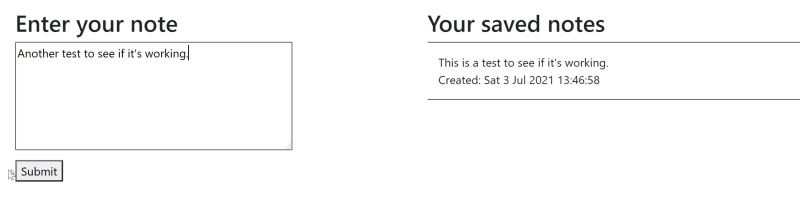
And that's it. We can now create notes in our application.
Using a button onclick event as a parameter
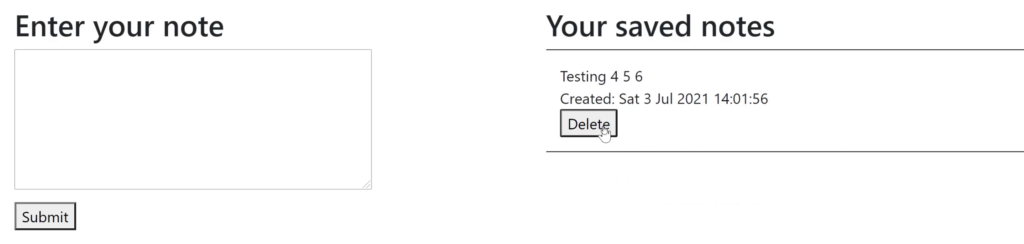
Our next task is to use a button onclick event as a parameter, and we will demonstrate this to delete a note.
We are going to add a delete button in our NoteViewComponent Razor component. The issue with this is that we need to delete the Note instance from our Note list instance in our NoteListingComponent Razor component when the button is clicked.
So how do we go about performing a button onclick event in another Razor component?
Well, we can set up a new property in our NoteViewComponent Razor component, and apply the [Parameter] attribute to it. This property will return an EventCallback type that allows us to set the call method in another Razor component.
<!-- NoteViewComponent.razor -->
...
@code {
	...
	[Parameter]
	public EventCallback<MouseEventArgs> OnDeleteNote { get; set; }
}
Our next job is to create the delete button. We will bind our OnDeleteNote event callback as the onclick event.
<!-- NoteViewComponent.razor -->
@if (Note != null)
{
	<li>
		<span>@Note.Message</span>
		<span>Created: @Note.Created.ToUniversalTime().ToString("ddd d MMM yyyy HH:mm:ss")</span>
		<button type="submit" @onclick="@OnDeleteNote">Delete</button>
	</li>
}
@code {
...
}
We now have to set up the call event for deleting the note and we can do that by going back to our NoteViewComponent Razor component.
In there, we go ahead and create an OnDeleteNote call method. This will pass in the Note instance that we wish to delete, and removes it from our notes listing.
<!-- NoteListingComponent.razor -->
@page "/"
...
@code {

	...

	protected void OnDeleteNote(MouseEventArgs mouseEventArgs, Note note)
	{
		if (Notes?.Any(n => n == note) ?? false)
		{
			Notes.Remove(Notes.First(n => n == note));
		}
	}
}
The final thing we need to do is to bind our OnDeleteNote event callback in NoteListingComponent into our NoteViewComponent reference. We can use the onclick pass parameter, as the event callback was declared as a parameter, and it returns an EventCallback type.
In addition, we can use the onclick with a parameter, as the call method is expecting a Note reference as well as the event arguments.
<!-- NoteListingComponent.razor -->
...
<div class="col-6">
	<h2>Your saved notes</h2>
	@if (Notes?.Any() ?? false)
	{
		<ul>
			@foreach (var note in Notes)
			{
				<NoteViewComponent Note="@note" OnDeleteNote="@((e) => OnDeleteNote(e, note))"></NoteViewComponent>
			}
		</ul>
	}
	else
	{
		<p>You currently do not have any saved notes.</p>
	}
</div>
@code {
	...
}
Using other HTML events
It's not just the click event that we can apply a callback event. We can do for other events as well.
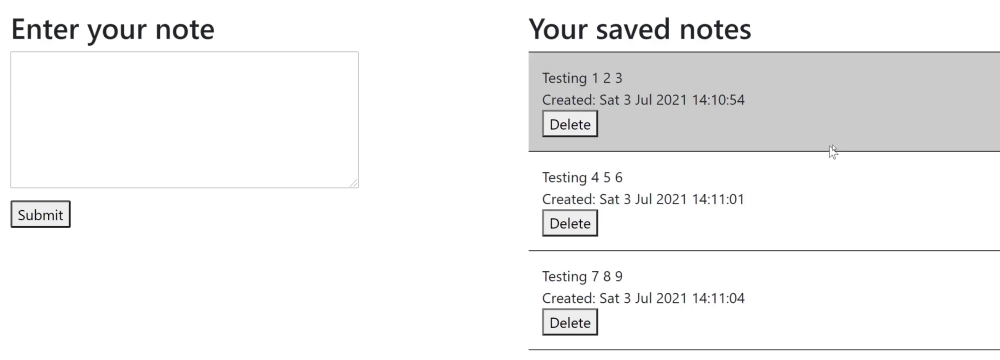
To demonstrate this, we are going to use the onmouseover and onmouseout events to change the background colour of a note listing.
Inside our NoteViewComponent Razor component, we will apply an <li> class to the existing tag. This will change when the mouse is hovered over, and will change back when it's hovered out.
The first thing we need to do is set up a ClassName string property.
<!-- NoteViewComponent.razor -->
@if (Note != null)
{
	<li>
		<span>@Note.Message</span>
		<span>Created: @Note.Created.ToUniversalTime().ToString("ddd d MMM yyyy HH:mm:ss")</span>
		<button type="submit" @onclick="@OnDeleteNote">Delete</button>
	</li>
}
@code {
	public string ClassName { get; set; }
	...
}
Next, we need to set our ClassName property to the <li> class attribute.
<!-- NoteViewComponent.razor -->
@using RoundTheCode.BlazorOnClick.Models
@if (Note != null)
{
<li class="@ClassName">
	<span>@Note.Message</span>
	<span>Created: @Note.Created.ToUniversalTime().ToString("ddd d MMM yyyy HH:mm:ss")</span>
	<button type="submit" @onclick="@OnDeleteNote">Delete</button>
</li>
}
@code {
...
}
This class name will change to highlight when the mouse is hovered over, and will empty once the mouse is hovered out.
For this example, we are going to use the Blazor CSS isolation feature. Added in .NET 5, this allows us to add CSS to a particular Razor component.
Inside the CSS file, the highlight class will be set to a grey background colour.
/* NoteViewComponent.razor.css */
.highlight {
	background-color: #ccc;
}
Now we can go about and set up our onmouseover and onmouseout call methods. This will change the class name value.
<!-- NoteViewComponent.razor -->
...
@code {

	...

	protected void OnMouseOver(MouseEventArgs focusEventArgs)
	{
		ClassName = "highlight";
	}

	protected void OnMouseOut(MouseEventArgs focusEventArgs)
	{
		ClassName = string.Empty;
	}

}
Finally, we can bind our callback events to the OnMouseOver and OnMouseOut attributes in our <li> tag.
<!-- NoteViewComponent.razor -->
@if (Note != null)
{
	<li class="@ClassName" @onmouseover="@OnMouseOver" @onmouseout="@OnMouseOut">
		...
	</li>
}
@code {

	...
}
Asynchronous event calls
We are now going to look at how to set up a button onclick async call method, very important when making API calls.
Using an async call method means it's recommended to call another async method using the await keyword. In-addition, the call method returns a Task type.
To demonstrate this, we are going to apply a two-second delay when creating a note. We will do it on our synchronous call first to see how the Blazor application behaves.
Afterwards, we will copy the create a note call method, but this time, we will set it up as an async callback, and see how the Blazor application behaves with that two second delay.
First of all, we need to import the System.Diagnostics namespace, and add a new Stopwatch instance to our OnSubmitNote method. When we start the stopwatch, it will enter a while loop, and will continue to loop until two seconds has elapsed.
Afterwards, it will go ahead and create the note.
<!-- NoteListingComponent.razor -->
@using System.Diagnostics
@page "/"
...
@code {

	...
	protected void OnSubmitNote(MouseEventArgs mouseEventArgs)
	{
		var stopwatch = new Stopwatch();
		stopwatch.Start();

		while (stopwatch.Elapsed.TotalSeconds < 2)
		{

		}

		Notes.Add(new Note(NewComment));
		NewComment = string.Empty;
	}

	...
}
What happens is during that two second delay, it will slow the application. We try and hover over a note, which should change the background colour. However, that doesn't happen until our OnSubmitMethod call method has finished executing.
To fix this issue, we can go ahead and recreate our OnSubmitNote event method. But this time, we are going create it async.
When it comes to imposing a two second delay, we can use the Task.Delay method rather than using a Stopwatch instance, using the await keyword.
<!-- NoteListingComponent.razor -->
<div class="col-6">
	...
	<button type="submit" @onclick="@(async(e) => await OnSubmitNoteAsync(e))">Submit</button>
</div>
...
@code {

	...

	protected async Task OnSubmitNoteAsync(MouseEventArgs mouseEventArgs)
	{
		await Task.Delay(new TimeSpan(0, 0, 2));

		Notes.Add(new Note(NewComment));
		NewComment = string.Empty;
	}

	...
}
This now fixes the issue. Whilst the two second delay is imposed, we can still do other activities on our Blazor application, such as hovering over our note, which results in changing the background colour.
Watch the video
You can watch us implement the demonstrations in this article in the following video.
We go ahead, create and delete a note, change the background colour of a saved note, and test the difference between using a synchronous method and an asynchronous method.
Related tutorials

