
Create a small blog in Blazor - Part 4 - Build category and page Razor components
Published: Tuesday 16 June 2020
File Downloads
So far, we have created our Blazor application in Visual Studio. Afterwards, we integrated Entity Framework into our Blazor application and built up our queries for our blog. Now it's time to develop our Blazor application. We are now going to be building a category and post Razor component to create our blog.
Change to PostService
But first, we want to make a small change to our PostService. We want the ability to show all the categories that belong to a post when viewing that post. In-order to do that, we need to make a small change to the GetAsync method.
// PostService.cs
public virtual async Task<Post> GetAsync(int id)
{
	return await _context.Set<Post>().Include(post => post.PostCategories).ThenInclude(postCategory => postCategory.Category).EnabledPosts().FirstOrDefaultAsync(post => post.Id == id);
}
We have included the Include method. We pass in a parameter to use the PostCategories property from our Post class. Additionally, we have included the ThenInclude method. For this, we pass in a parameter to use the Category property from our PostCategory class. This is so we get the categories that belong to a post.
Razor Components
Now that we have everything in place, we can go ahead and develop our Razor components. The first thing we are going to produce is our NavMenu Razor component.
NavMenu Razor Component
We can use the @inject keyword to inject a service that belongs to dependency injection. For the NavMenu, we will be injecting the CategoryService.
<!-- NavMenu.razor -->
@using RoundTheCode.Blazor.Data.CategorySection
@using RoundTheCode.Blazor.Services.CategorySection
@inject ICategoryService categoryService
<div class="top-row pl-4 navbar navbar-dark">
	<a class="navbar-brand" href="">RoundTheCode.Blazor</a>
	<button class="navbar-toggler" @onclick="ToggleNavMenu">
		<span class="navbar-toggler-icon"></span>
	</button>
</div>

@if (Categories != null)
{
<div class="@NavMenuCssClass" @onclick="ToggleNavMenu">
	<ul class="nav flex-column">
		@foreach (var category in Categories)
		{
			<li class="nav-item px-3"><a href="/category/@category.Id">@category.Name</a></li>
		}
	</ul>
</div>
}

@code {
	private bool collapseNavMenu = true;

	private string NavMenuCssClass => collapseNavMenu ? "collapse" : null;

	public IEnumerable<Category> Categories { get; set; }

	private void ToggleNavMenu()
	{
		collapseNavMenu = !collapseNavMenu;
	}

	protected override async Task OnParametersSetAsync()
	{
		Categories = await categoryService.GetAllAsync();

		await base.OnParametersSetAsync();
	}
}
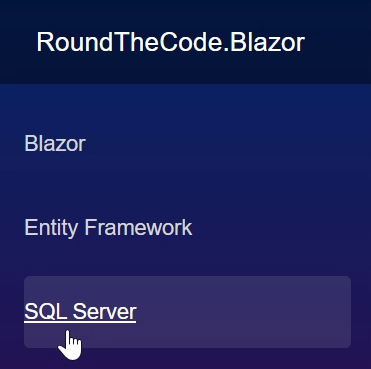
We override the OnParametersSetAsync in our Razor component to get all the categories. This is stored in the Categories property. These categories are then displayed.
Category Razor Component
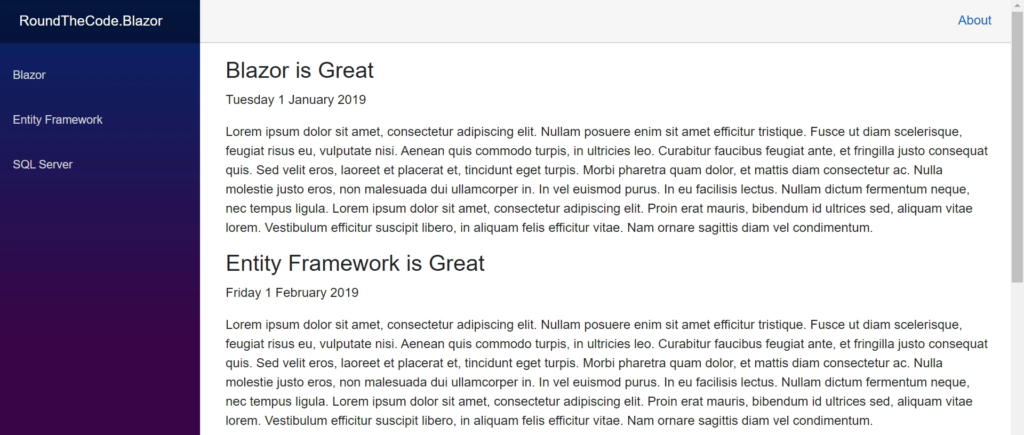
Next, we build up our category page. It's a similar story to what we did with NavMenu. But, we try and override the OnInitializedAsync method to populate our categories. However, we soon find that this doesn't work as we intended.
<!-- CategoryPage.razor -->
@using RoundTheCode.Blazor.Data.CategorySection
@using RoundTheCode.Blazor.Data.PostSection
@using RoundTheCode.Blazor.Services.CategorySection
@using RoundTheCode.Blazor.Services.PostSection
@inject ICategoryService categoryService
@inject IPostService postService
@page "/"
@page "/category/{id:int}"
@if (Category != null)
{
<h3>@Category.Name</h3>
}
@if  (Posts != null)
{
	@foreach (var post in Posts)
	{
		<div>
			<h3><a href="/post/@post.Id">@post.Title</a></h3>
			<p>@post.Published?.ToString("dddd d MMMM yyyy")</p>
			<p>@post.Content.Substring(0, 100)</p>
		</div>
	}
}
@code {

	[Parameter]
	public virtual int? Id { get; set; }

	public virtual Category Category { get; set; }

	public virtual IEnumerable<Post> Posts { get; set; }

	protected override async Task OnParametersSetAsync()
	{
		if (Id.HasValue)
		{
			Category = await categoryService.GetAsync(Id.Value);
		}

		Posts = await postService.GetAllAsync(Id);

		await base.OnParametersSetAsync();
	}
}
We use the @page keyword twice. This Razor component will be populated when we hit the home page, or when we hit the category page. With the category page, we pass in a route value of "id" which is an integer.
<!-- CategoryPage.razor -->
@page "/"
@page "/category/{id:int}"
We need to match that route value with a property of the same name. In our code section, we have created an Id property, attributing a [Parameter] attribute around it.
Post Razor Component
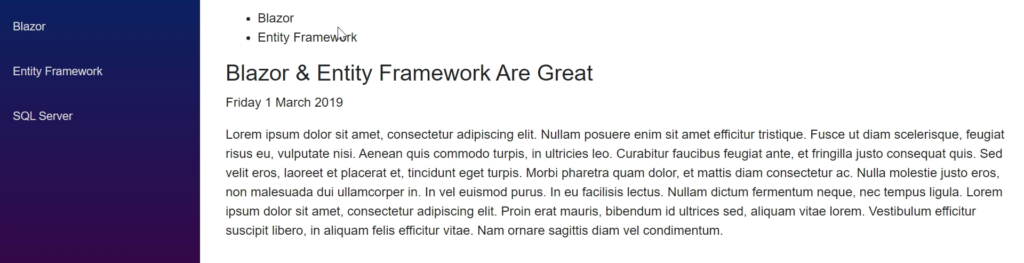
Our final task is to build up our post page. This will show our post in detail and will list all the categories associated with that post.
<!-- PostPage.razor -->
@page "/post/{id:int}"
@using RoundTheCode.Blazor.Data.CategorySection
@using RoundTheCode.Blazor.Data.PostSection
@using RoundTheCode.Blazor.Services.CategorySection
@using RoundTheCode.Blazor.Services.PostSection
@inject ICategoryService categoryService
@inject IPostService postService
@if (Post != null)
{
	@if (Post.PostCategories != null)
	{
		<ul>
			@foreach (var postCategories in Post.PostCategories)
			{
				@if (postCategories.Category != null)
				{
					<li><a href="/category/@postCategories.Category.Id">@postCategories.Category.Name</a></li>
				}
			}
		</ul>
	}

<h3>@Post.Title</h3>
<p>@Post.Published?.ToString("dddd d MMMM yyyy")</p>
<p>@Post.Content</p>
}
@code {

	[Parameter]
	public virtual int? Id { get; set; }

	public virtual Post Post { get; set; }

	protected override async Task OnParametersSetAsync()
	{
		if (Id.HasValue)
		{
			Post = await postService.GetAsync(Id.Value);
		}

		await base.OnParametersSetAsync();
	}


}
Similar to category, we use the @page keyword to pass in a route value of "id" which is an integer.
<!-- PostPage.razor -->
@page "/post/{id:int}"
In our code section, we have created an Id property, attributing a [Parameter] attribute around it. This matches our "id" route value.
See The Working Application
Watch the Blazor application running! See how we navigate through each category from the navigation menu. In addition, see all the posts for a category being displayed. Then, watch as we click on a particular post, which shows the full article.
Suggestions
So we've gone ahead and built up a small blog in Blazor. If you have any suggestions as to any other areas of Blazor you wish for me to cover, let me know. You can contact me on the link below.
Related tutorials

Create a small blog in Blazor - Part 1 - Create application in Visual Studio
We get Visual Studio to create our Blazor Server App. Afterwards, we examine what files have been created and run through the demo Razor Components created.
Create a small blog in Blazor - Part 2 - Entity Framework integration
We set up our entities and DbContext to integrate Entity Framework into our Blazor Server app. We also create the SQL Server database required.